

With FileMaker 26, how do you set up your database so an AI model can understand it? Two features make this easier: GetTableDDL, which describes your schema in a language AI already speaks, and field annotations, which explain what each field actually means. This reframes how to invest in aging but essential FileMaker solutions. The system you already depend on does not need to be rebuilt to work with AI. It needs to be made legible.
A Fork In The Road
Many teams adopting AI move quickly and pay for it later, connecting assistants to data that the model does not truly understand. Inspecting the schema may produce answers that sound confident and are quietly wrong. A schema an AI can understand produces answers you can act on more confidently. What follows is how GetTableDDL and field annotations work together, including the behavior that will surprise you the first time you hit it (the “Fork in the Road” below), and the FileMaker naming quirks that quietly waste tokens if you are not paying attention.
Where All Those Fields Come From
Legacy FileMaker solutions tend to accumulate fields that were never meant to represent business data. Temporary globals, helper calculations, display fields, imported values, and countless other workarounds slowly grow the schema. Each new FileMaker release chips away at the need for these techniques. Layout Calculations, for example, remove the need for many display-only fields.
The FileMaker 26 feature that may matter most for AI-assisted development is field annotation, especially when paired with GetTableDDL. GetTableDDL is not handing you SQL that FileMaker runs to build tables. It produces a description of your FileMaker schema written in SQL DDL, a language already understood by databases, developer tools, and now AI models.
Rather than inventing a brand-new FileMaker-specific schema language, Claris chose to represent a FileMaker table using standard SQL DDL. SQL has become the universal language for describing relational database structures, making it immediately understandable to developers, database tools, and AI models.
In other words, the output is acting more like an interchange format than executable code.
Why SQL DDL? Imagine Claris had invented something like:
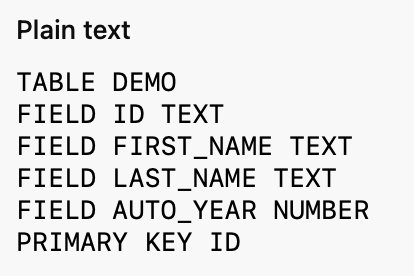
Nothing is technically wrong with this format, it simply wouldn’t be familiar to anyone outside the FileMaker world. Every AI model, every database tool, and every developer would have to learn this new syntax. Instead, they emit:
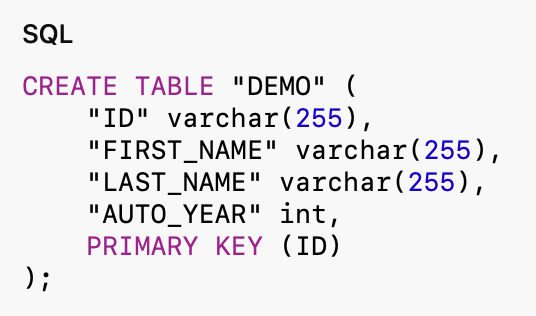
Every modern LLM has seen millions of SQL CREATE TABLE statements during training. When it sees this output, it doesn’t need to “learn” what the schema means—it already understands tables, columns, primary keys, and data types.
- What the table is
- What the columns are
- Their names
- Their approximate data types
- Which field is the primary key
Why annotations matter
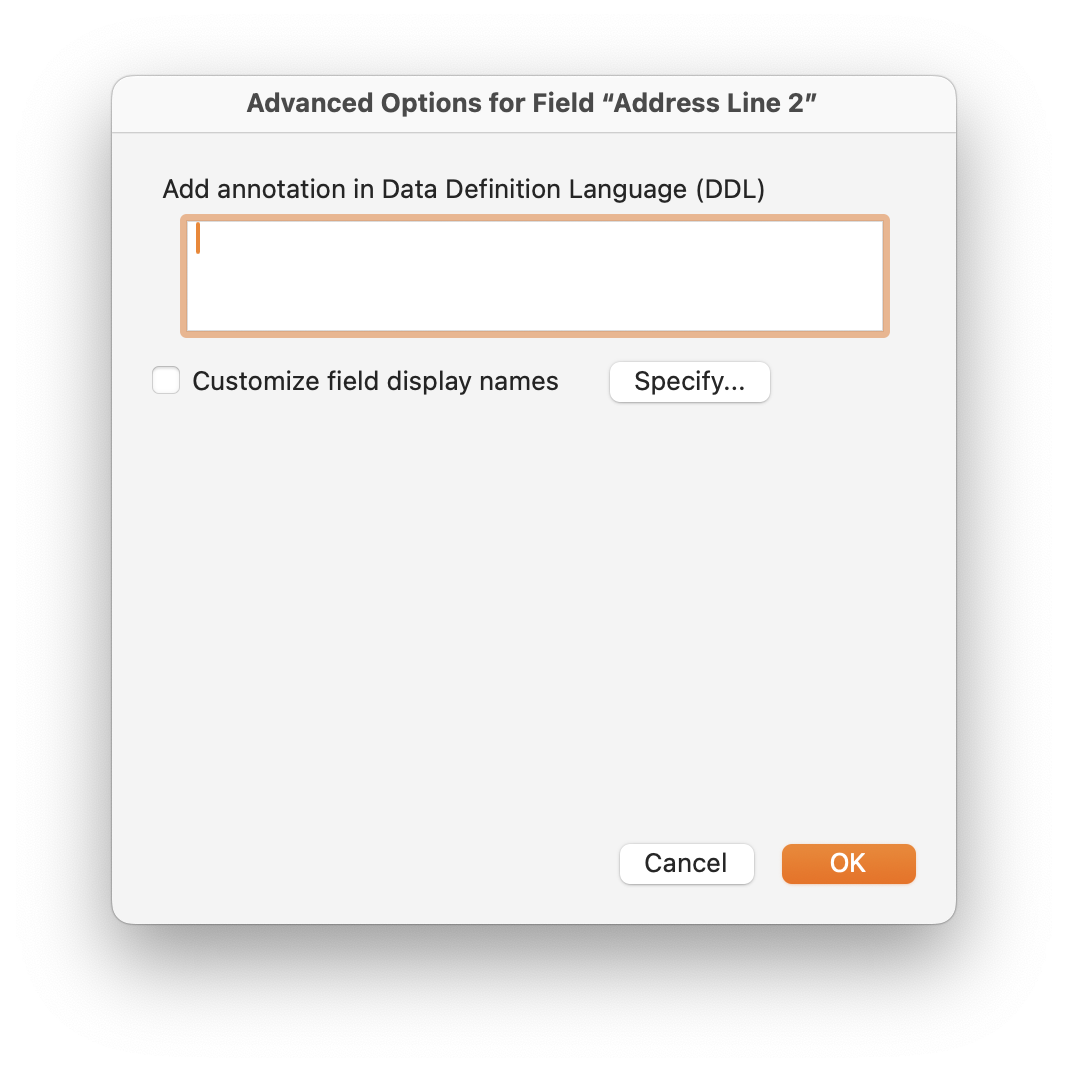
Let’s get back to the annotations. This function works in tandem with the new capability introduced in FileMaker version 26 – the ability to add a field annotation. when in the Manage Database Dialog and you are in the Fields section – select a field and click on the advanced button at the bottom right. You’ll see the Advanced Options for Field “<Name of Field that you had selected>”
It’s very simple just enter a description that you’ll want AI to understand the purpose of this field. Another way to see this is as follows.
DDL tells AI what the field is, and Annotations tell AI what the field means.
But, let’s step back just a moment. In FileMaker 2025 (v22) you could add a comment that would get picked up by GetTableDDL, but you would be trading off the comment for the LLM description. The way that was done was by prefixing the description with the following string “[LLM]” yes if you entered in your comment [LLM] in square brackets then it would use that whole your whole comment and pass it along to AI. So if you took the time to add LLM comments to many of your fields, don’t dismay that functionality will still be respected.
But now in FileMaker version 26 we now have this dedicated area to enter our field descriptions. Which is great because we can use the comments for our own comments again. So if you haven’t dove into setting up field annotations then now is the time to do it. But what should the comment look like. On an email list I am on someone asked that very question and here are some good examples.
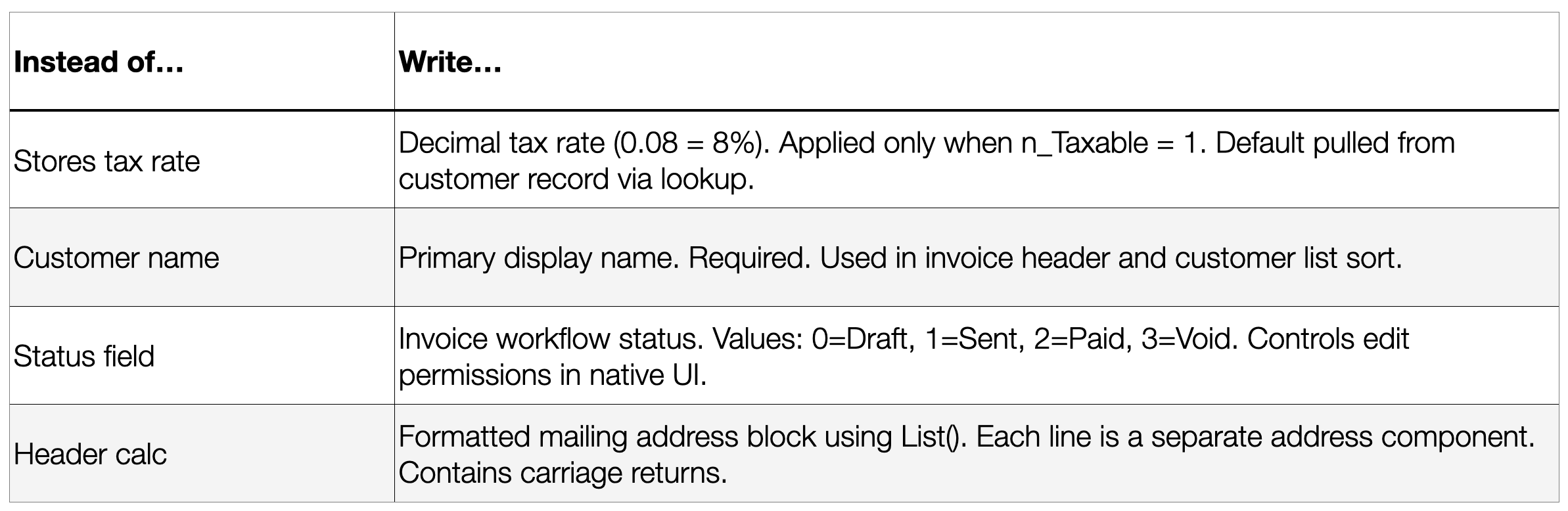
So much more explanatory and detailed.
Especially with legacy systems you’ll be there a very long time trying annotate all the fields and some of them you should not bother with. Here were some guidelines from the same email exchange when asking AI which ones you should annotate and which ones you should not bother with.
Highest Priority ( annotate these )
- Every field on an API layout ( displayed or editable in the web app )
- FK fields, especially if the relationship isn’t obvious from the name
- Calculation fields shown in the UI — the formula is in the XML but the business meaning may not be ( use Layout Calculations )
- Flag/status fields ( b_Active, n_Status ) — what do the values mean, what do they control?
- Fields with non-obvious formats or constraints ( decimals stored as percentages like n_TaxRate, fields with embedded returns, date fields with unusual formats )
Lower Priority ( often self-explanatory without annotation )
- Simple text fields with clear names (s_Name, s_Email, s_Phone)
- Standard date/timestamp audit fields
- Clear serial PK fields
- Calculations whose formula is self-evident from their name
Skip entirely
- Global fields used only inside scripts as temp variables
- Fields that never appear on any API layout
- Deprecated or legacy fields not in active use
Key things to call out explicitly
- Units or scale ( stored as decimal, stored in cents, percentage as whole number )
- Embedded carriage returns ( I’ll know to add .replace(/\r/g, ‘\n’ ) )
- Fields that are read-only from the web perspective ( calculations, auto-enters that shouldn’t be overwritten via API )
- Fields that drive visibility or behavior in the web app
- Any dot in the field name — just flag it: “note: field name contains dot, API workaround required”
Let’s look at an example and the important take away from this. Let’s look at a table called Tasks from the a new file.
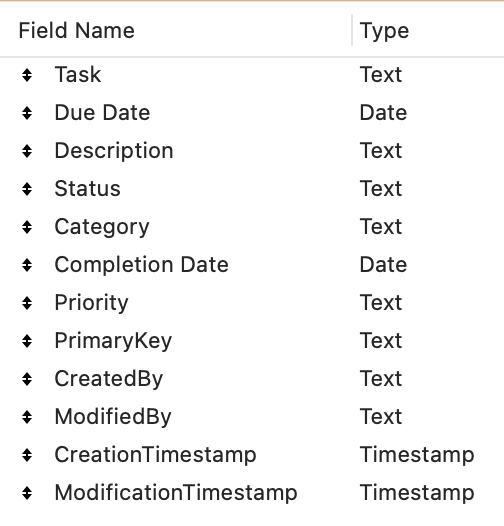
If you evaluate this calculation: GetTableDDL ( JSONMakeArray ( "TASKS" ; "" ; "string" ) ; 1 )
You’ll get the following.
CREATE TABLE "Tasks" ("Task" varchar(255),"Due Date" datetime,"Description" varchar(255),"Status" varchar(255),"Category" varchar(255),"Completion Date" datetime,"Priority" varchar(255),"PrimaryKey" varchar(255), /Unique identifier of each record in this table/"CreatedBy" varchar(255), /Account name of the user who created each record/"ModifiedBy" varchar(255), /Account name of the user who last modified each record/"CreationTimestamp" datetime, /Date and time each record was created/"ModificationTimestamp" datetime, /Date and time each record was last modified/PRIMARY KEY (PrimaryKey));
Now let’s go ahead and add an annotation to the Description. Something like this. “This is the task description which should also contains validation criteria to help evaluate when the task is completed correctly.” Once you have added that annotation to that field and evaluate the same calculation as above, this time what you’ll get back is the following.
CREATE TABLE "Tasks" ("Description" varchar(255), /This is the task description which should also contains validation criteria to help evaluate when the task is completed correctly./);
The Fork In The Road
Notice that this is the only field you get back. And it is the same if you use the old method of using the field comments with [LLM] or if you use the new dedicated field annotations area. And thus the Fork In the Road! But the good thing is that it only applies to each table and not the entire file (all tables). But this is an important point to note and be aware of.
How does it know that my field is a Primary Key
Now this is an interesting one. Because I can have any text field where I enter even just the string in quotes “UUID” as an auto-enter calculation and this will trick FileMaker into thinking that this field is the primary key. Of course the validation options of unique not empty will also trigger that. So be aware that it can be misleading. So double check and confirm that you it is identifying the primary key in your table as the correct one.
For example I turned off the options of PrimaryKey for this field and added the following as an auto-enter calculation for the Status field: // some random comment about UUID
And sure enough it now thinks the Status field is a primary key field. Based on my testing, FileMaker appears to identify primary keys by looking for certain patterns—such as the presence of the string “UUID” in an auto-enter calculation or unique validation rules. This isn’t documented behavior, so treat it as an observation rather than a guarantee.
Table Names vs Base Table Names
How do you refer to table names – do you call them BaseTables, Source Tables or just plain tables. What about the when you are in the relationship graph and tables that appear there, are those called Table Instances, Table Occurrences or just plain tables. If you find yourself questioning this when looking at functions, you are not alone. Here is a perfect example of the confusion.
The function TableNames. What do you think this function returns? Here is the prototype. TableNames ( fileName )
If you take things literally then you think maybe it would be the Table, Basetable or Source Tables names (whatever your preference). And if you only have one occurrence on your graph for every table in your file. Then this would make you think, it’s returning the list of Tables or Basetables (and so I don’t have to repeat myself all the time) I am going to refer those tables as Basetables. If you go to the graph and add some more table occurrences of the same table (which is often the case in solutions). You’ll have the same Basetable instance on the graph multiple times. So you’ll get the same fields repeated because what you are feeling GetTableDDL is a JSON array of table occurrences NOT Basetables.
So why is this important to understand. Well you want to be efficient with how much context (tokens) that you end up using.
If instead you use BaseTableNames which also requires the fileName parameter: BaseTableNames ( Get ( fileName ) )
You’ll get back the list of Basetable names – But only if you have a Table Occurrence on the Graph with the same name as the Basetable name. I know it is confusing and I invite you to experiment so you’ll understand it more directly. I would say normally we never should remove the default table occurrence that gets created on the graph when we add a new Basetable. But just in case, then you know you are not going crazy. So I would say use BaseTableNames. This will get you a list of them but then you’ll have to make that into a JSONArrary and FileMaker has just the function for this and it is called JSONMakeArray. So this is what you would pass into GetTableDDL.
JSONMakeArray ( BaseTableNames ( Get ( fileName ) ) ; "" ; "string" )
So efficiently is key here. As a matter of fact if you are trying to get something wired up for only one of your 30 tables then don’t get all the tables. Note you’ll still need to use the JSONMakeArray function around the Basetable name. So this next example will get you SQL DDL for the Tasks table and if you added an annotation to any field then it would be ONLY those fields that get returned.
GetTableDDL ( JSONMakeArray ( "Tasks" ; "" ; "string" ) ; 1 )
A semantic contract between FileMaker and AI
Think of GetTableDDL as creating a semantic contract between your FileMaker solution and an AI model.
The SQL DDL defines the structure:
- tables
- fields
- data types
- primary keys
Field annotations provide the semantics:
- what the field represents
- how it should be used
- business rules
- constraints
- workflow logic
Together they transform your FileMaker schema from something AI can merely inspect into something AI can genuinely understand. Understanding how to get only what you need is good so that you are efficient with your token usage. Understanding FileMake naming quirks will give you the understanding you need to be able to not get stuck when things are not working as you expect them to, especially in systems that you have not architected yourself.
That is why the fork in the road deserves respect. Because GetTableDDL returns only the annotated fields for a table once any field is annotated, it pays to commit to a table rather than dabble in it. Annotate every field the AI will need there, get comfortable with BaseTableNames and JSONMakeArray so you request only the tables you actually want, and you keep your token usage leaner and your results predictable, even in systems you did not architect yourself.
For a decision-maker, this is the quiet part of an AI strategy that decides whether the rest of it works. Durable value from AI rarely comes from bolting a chatbot onto fragile data. It comes from making a system legible first, so the intelligence layer has something solid to reason about. A FileMaker solution that has carried your business for a decade does not need to be replaced to join that future. It needs to be explained, and FileMaker gives you the vocabulary to do it.